
Fred Dispense
Alert! Your PBS B2B Device may be expiring soon! Follow the steps below to extend your device expiry to avoid any disruptions to PBS Online.
You do not have to wait until the day of expiry to extend the B2B Device. You can renew your B2B Device now.
Overview
A B2B device remains active for 6 months and needs to be renewed within PRODA prior to its expiration to guarantee the uninterrupted functioning of PBS online claiming in Fred Dispense Plus.
Watch a video
Extending your B2B device
If you have any questions on using PRODA, call or email the PRODA team:
- Phone: 1800 700 199 and select Option 1 (Monday to Friday, 8am to 5pm local time)
- Email: proda@servicesaustralia.gov.au
You will need to log into PRODA and ensure that you have access to managing B2B Devices.
- Log into PRODA
- Select Organisations.
- Select the organisation's B2B Device you want to renew.
- Depending on your PRODA set up, you may need to then select your Subsidiary Organisation as well.

- Select B2B Devices to expand the list of B2B Devices available under your organisation.
- Select the Device you want to renew/manage.
- This should bring you to the Device details page. Go to the Device Management section and click Extend B2B Device Expiry.
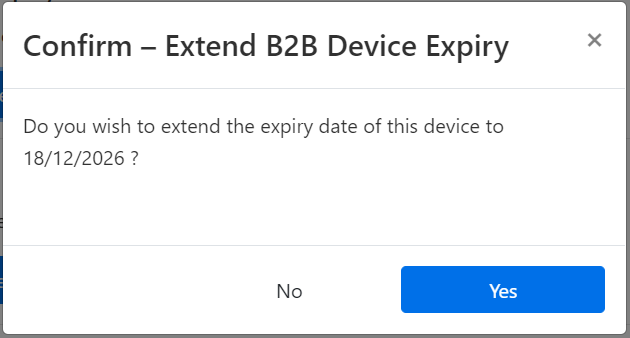
- A confirmation prompt will display. Click Yes if you want to continue.
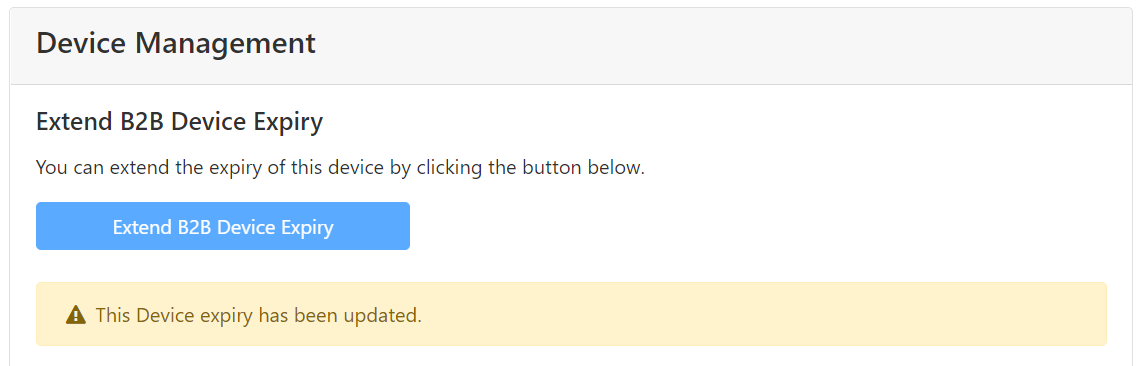
- The Device Expiry should have been extended and updated.
After you have updated your device expiry, it can take up to an hour for the new expiry to reflect in Fred Dispense Plus.
Device expiration
You only need to do these steps if your B2B Device has expired/you couldn't extend your device before its expiry.
If your device has expired, you will no longer have access to PBS Online Web Services. To reactivate your device, you will need to generate a new code and enter the code in Fred Dispense Plus.
Generating new code
- Log into PRODA
- Select Organisations.
- Select the organisation's B2B Device you want to renew.
- Select B2B Devices to expand the list of B2B Devices available under your organisation.
- Select the Device you want to renew/manage.
- This should bring you to the Device details page. Go to the Device Management section and click Generate New Code.
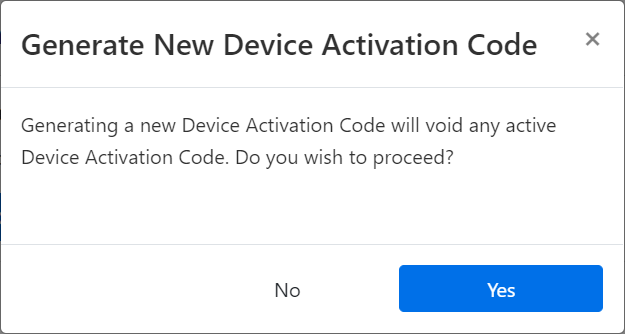
- A confirmation prompt will display. Click Yes if you want to continue.
- The new activation code should be generated:
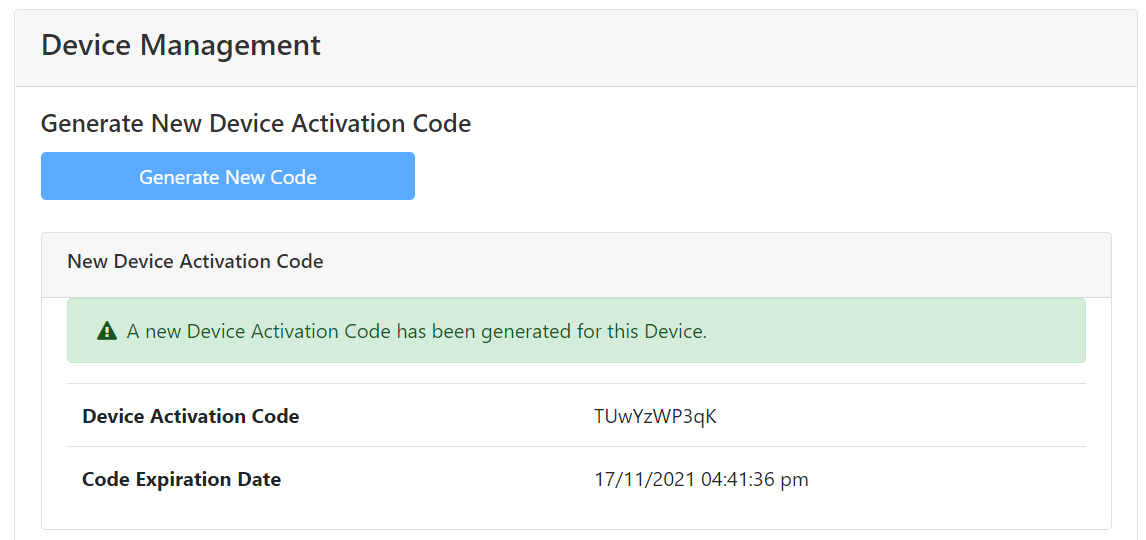
Record this code down as it's not stored within your account. This code is only valid for 7 days and once it expires, you will need to generate a new code. This code will need to be entered in Fred Dispense Plus. Proceed to Updating the activation code in Fred Dispense below.
Updating the activation code in Fred Dispense
- From the Setup menu, select PBS Online, then select PBS Online Web Services (PRODA).
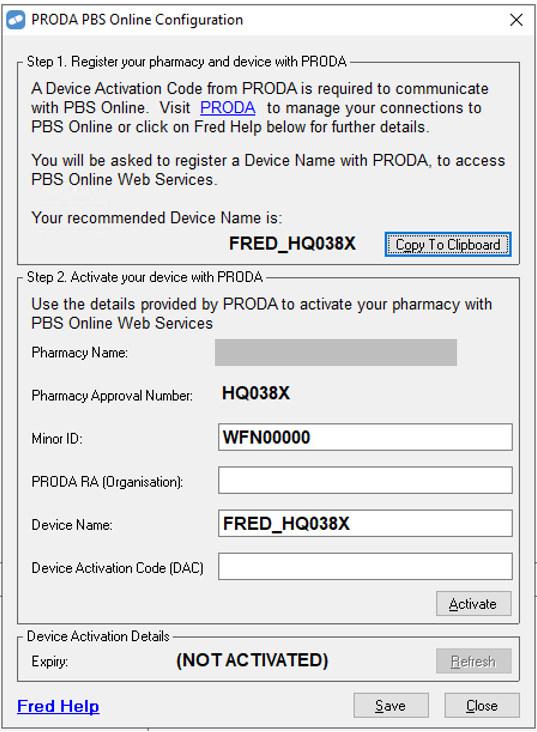
- Switch back and forth between the browser window displaying PRODA and Fred Dispense to copy (Ctrl+C) and paste (Ctrl+V) the PRODA RA (Organisation) and Device Activation Code (DAC) values as shown below.
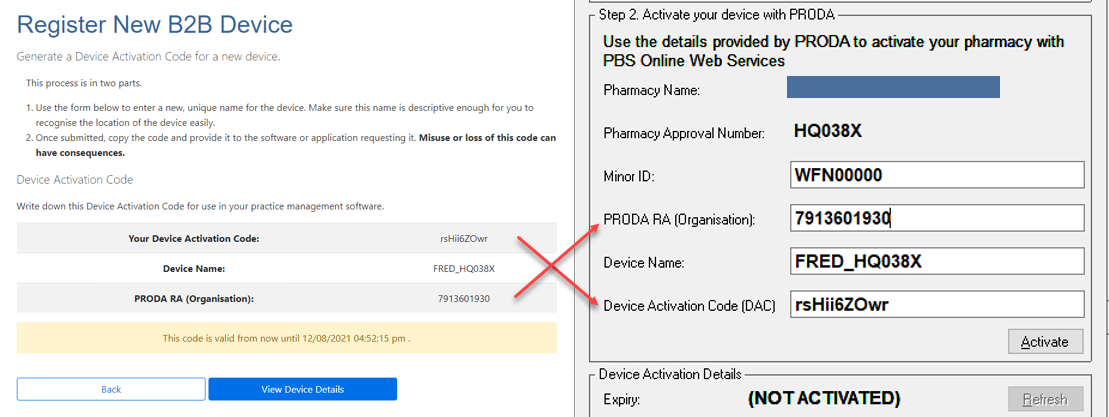
- Once the values are filled in, click Activate. Once successfully activated, the Device Expiry details are shown in green.
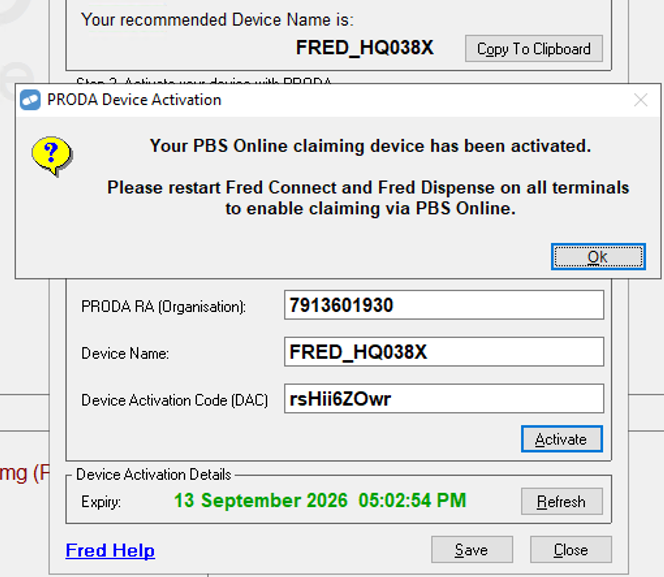
- Click OK.
- Click Close.
You must restart Fred Connect and Fred Dispense on all terminals to enable claiming via PBS Online.
Once you've activated your B2B Device, it's active for six months. You'll be reminded ahead of time to extend the expiry.
Related links
Enabling PBS Web Services in Fred Dispense Online Help
Managing B2B Devices in PRODA